How to Use, Customize, and Edit a Webflow Template


The gap between buying a Webflow template and launching a site is where most projects stall. This guide covers the full lifecycle: using, customizing, and editing a template, adapting it for e-commerce, and the recovery moves for resetting, changing, cloning, and copying it.
A purchased Webflow template arrives as a full site with someone else's brand, someone else's photography, and a structure you don't fully understand yet. The gap between "bought the template" and "launched my site" is where most template projects stall, usually because the owner starts restyling before understanding how the file is built.
This guide walks through the full lifecycle: using a template for the first time, customizing it without breaking it, adapting it for an e-commerce store, and the recovery moves Webflow gives you when something goes wrong, including resetting, changing, cloning, and copying. The advice draws on our reviews of 333 Webflow templates, each scored on design and development quality by professional designers and developers with 10 or more years of experience.
How do you use a Webflow template?
Buying a Webflow template doesn't automatically create a site. To use a purchased template, go to your Webflow Dashboard, click "New Site," choose "Templates" as your starting point, check the "Purchased" filter, and select your template. Webflow creates a new site from it and opens the Designer, where all editing happens. The template stays in your account, but each new site built from a premium template requires a separate purchase.
The first hour with a new template is best spent reading, not editing. Open the Pages panel and walk through every page, including the utility pages (404, password, style guide). Open the CMS panel and look at which Collections exist and what fields they contain. Well-built templates ship with a Style Guide page that shows every heading, button, and rich text style in one place. That page is the map of the design system you just bought.
Publishing works the same as any Webflow site: the free Starter plan publishes to a webflow.io subdomain, and connecting a custom domain requires a paid Site plan. The template price and the hosting cost are separate. A $79 template on Webflow's CMS plan costs the template price once, plus the recurring hosting fee. If you haven't picked a template yet, our comparison of the best websites to find professional Webflow templates covers where to look first.
How do you customize a Webflow template?
Customize a Webflow template in this order: content first, then global styles, then layout. Replace the placeholder text and images, swap the fonts and color variables at the class level, and only then rearrange sections. Webflow's class system means one careful edit updates every element sharing that class, and one careless edit breaks pages you haven't opened yet. Save a manual backup before each stage with Cmd + Shift + S on Mac or Ctrl + Shift + S on Windows.
The class system is the whole game. When you change the font on a class like "heading-large," every element using that class updates across the entire site. That one-edit-updates-everything behavior is what makes template customization fast, and it's also the risk. Before restyling anything, click an element and check its class in the Style panel. If the class name looks structural (something like "container" or "section-padding"), changes to it will ripple everywhere.
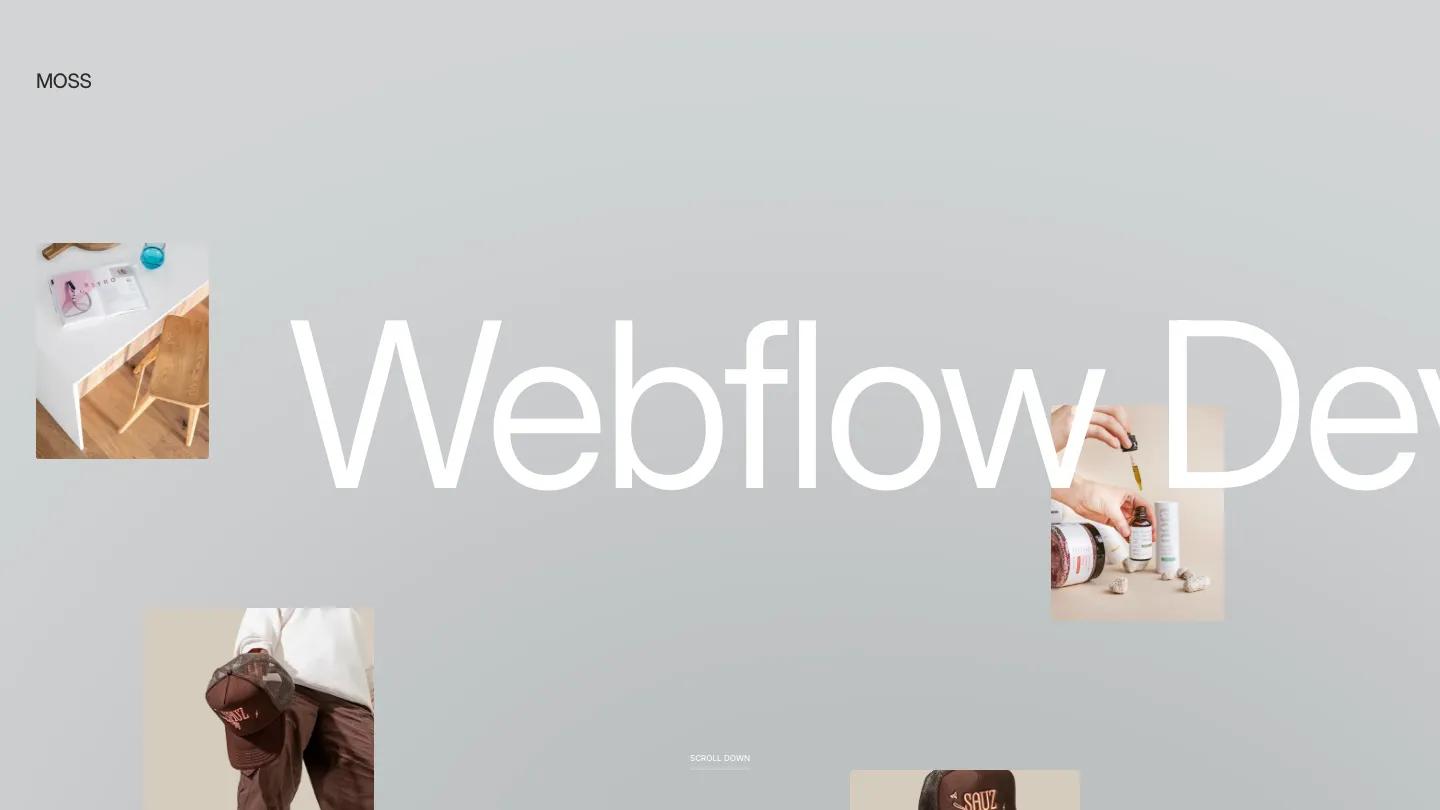
Two practices keep a customization clean. First, edit existing classes instead of stacking new combo classes on top of them; layered overrides are how templates turn into unmaintainable tangles. Second, use the template's own components and symbols rather than building parallel versions. A template with a strong Dev Score, which in our scoring methodology measures class naming discipline and structure, absorbs this kind of editing gracefully. That's why we publish the Dev Score for every template in our Webflow library: it predicts how safe the file is to customize. MOSS (Dev: 9.7/10) is the reference point at the top of that scale.
How do I effectively customize a purchased Webflow design asset?
Effective customization means adapting the asset to your content instead of forcing your content into its placeholders. Start by mapping your real content, page list, content types, and word counts against what the template provides. Where they match, drop your content in. Where they don't, modify the CMS Collections before touching any visual design. A purchased design asset is a structure you're renovating, and structural work comes before paint.
The most common failure pattern we see is cosmetic-first customization. The owner spends a week on colors and fonts, then discovers the case study layout assumes three images per project and their projects have twelve, or that the team page is hardcoded for six people and they have two. Those are CMS and layout problems, and fixing them after restyling means redoing work.
Treat the template's decisions with some respect before overriding them. Spacing systems, type scales, and breakpoint behavior in a high-scoring template were tested choices. In our library of 333 reviewed Webflow templates, files scoring Dev: 9.0/10 or above almost always use consistent spacing classes and a deliberate type ramp; our top-rated Webflow templates roundup lists the files at that level. When you replace those with one-off pixel values, you're usually trading a tested system for an untested one. Change what your brand requires, keep what the structure got right.
How do you customize a Webflow template for an e-commerce store?
Start with the product data model, not the storefront. In a Webflow Ecommerce template, set up your real products, variants, categories, and prices first, because product structure drives what the category pages, product pages, and cart need to display. Then restyle the product grid and product page template, configure shipping and payment settings, and run a test order end to end before connecting your domain.
Product templates in Webflow work like CMS Collection pages: you design the product page layout once and every product renders through it. This is where template quality shows. A well-built e-commerce template, like Clixr E-commerce (Design: 9.5/10, Dev: 9.8/10, $79), ships with the full commercial page set already wired: product grids, cart, checkout, pricing, and a working 404.

Know the platform's ceiling before committing. Webflow Ecommerce handles catalogs of a few hundred products with simple variant needs well. If you need thousands of SKUs, complex inventory logic, or a deep bench of third-party store apps, that's Shopify territory, and no amount of template customization changes it. Our Webflow vs Framer vs Shopify comparison covers where that line sits.
How do you edit a Webflow template?
Editing happens in two places with very different powers. The Webflow Designer edits everything: layout, classes, interactions, CMS structure, and settings. The Editor (and Edit mode) only changes content, text, images, and CMS items, without touching design. Site owners and developers work in the Designer; clients and content teams work in the Editor, where they can't accidentally break the layout.
A practical editing workflow for a template site looks like this. Structural and style edits happen in the Designer against a staging state, previewed at desktop, tablet, and mobile breakpoints using the toolbar's breakpoint switcher, then published. Day-to-day content edits, new blog posts, updated headlines, swapped photos, happen through the Editor or the CMS panel and never require touching a class.
Interactions deserve one caution. Template animations are built with Webflow's Interactions panel, and they're often bound to specific classes or elements. Renaming a class or deleting a wrapper div can silently kill an animation on a page you're not looking at. Before editing elements that move, open the Interactions panel and check what's attached to them. When we score templates, reusable, clearly named interactions are part of what earns a high Dev Score; one-off interactions tangled into the layout are what earns a low one.
How do you change the template on a Webflow site?
Webflow has no template-switching feature. A template isn't a skin applied over your content; it becomes the site itself, so there's nothing to swap. To move an existing site to a new template, you create a new site from the new template and migrate content manually: export and reimport CMS Collections via CSV, and copy static elements between Designer tabs with copy and paste.
The migration is more mechanical than creative. CMS content moves fastest: export each Collection to CSV from the old site, create matching fields in the new site's Collections, and import. Static page content, hero copy, feature sections, about pages, moves with copy and paste between two Designer tabs, though pasted elements bring their old classes with them, so expect cleanup.
Budget honestly before deciding. Rebuilding a ten-page marketing site onto a new $79 template is usually two or three working days including QA. If the current site's problem is styling rather than structure, restyling the existing template is nearly always cheaper than changing it. If the structure is wrong, migrate and don't look back: every month on the wrong information architecture costs more edits than the move itself.
How do you reset a Webflow template to its original state?
Restore a backup. Webflow automatically creates restore points as you work (every 50th autosave), and Site settings > Backups lists them with timestamps and previews. To reset a template to its untouched state, restore the earliest backup, which is the site as it was the moment it was created from the template. Webflow saves your current version before restoring, so a reset is itself reversible.
Two plan limits matter here. Paid Site plans keep unlimited backups, so the original template state remains reachable months later. Free Starter sites can only restore one of the two most recent backups unless the Workspace plan is paid, which means a Starter site edited heavily for weeks may no longer have the original state available. If you're on a Starter plan and expect to experiment, create a manual backup (Cmd + Shift + S) immediately after creating the site, before your first edit.
The nuclear alternative is creating a fresh site from the template again. For free templates that costs nothing. For premium templates, Webflow requires a repurchase for each new site, which is why the earliest-backup route should always be tried first.
How do you clone a Webflow template?
Cloning applies to community projects, not Marketplace templates. On Made in Webflow, creators share projects marked as cloneable; clicking "Clone in Webflow" copies the entire project, pages, classes, CMS structure, and interactions, into your Workspace for free. Marketplace templates can't be cloned; they're licensed products created through purchase. The other meaning of cloning, duplicating your own site, is covered by Webflow's Duplicate feature.
Cloneables are one of Webflow's best learning resources and a legitimate way to start a project. The catch is quality variance. Marketplace templates pass Webflow's submission review, which requires a "Good" rating on every section of its quality rubric. Cloneables pass nothing. For every disciplined, well-classed cloneable there are dozens with chaotic naming and orphaned styles that will fight you through the whole build.
Licensing is the second check. Each cloneable carries whatever terms its creator chose, and some restrict commercial use or expect attribution. The project's detail page on Made in Webflow shows the copyright information. Reading it takes a minute and matters when you're cloning for client work; we cover this in more depth in our review of free Webflow templates for client projects.
How do you copy a Webflow template site?
Use Duplicate. From the Dashboard, hover over the site and choose the duplicate option, or use the duplicate icon in Site settings. The copy includes pages, styles, assets, CMS Collections and items, e-commerce products, custom code, and fonts. It does not carry over form submissions, backups, site members, or billing, and hosting is not transferred. One licensing note: duplicating a site built on a premium template requires repurchasing the template for the copy.
Duplication has three everyday uses on template projects. First, a sandbox: duplicate the site and test a risky redesign on the copy while the original stays live. Second, a starter kit: agencies that repeatedly build on the same template keep a pre-customized duplicate with their standard components already in place. Third, a handoff copy for projects where the client wants a frozen snapshot at launch.
Copying elements between sites works too, at a smaller grain. Selecting a section in one Designer tab and pasting it into another site brings the elements and their classes across. It's the standard way to move a single hero or pricing section between projects without duplicating a whole site, though class name collisions with the destination site are yours to resolve.
FAQ

How to Sell a Webflow Template: From Submission to Payout
by David Fernandez

How to Use, Customize, and Change a Framer Template
by Emma Clark
Best Webflow Templates for Digital Products 2026
by Lauren Smith

Best Websites to Find Professional Webflow Templates
by Marcus Jones
Top-Rated Webflow Templates for Portfolios, Agencies, and Small Businesses (2026)
by Marcus Jones